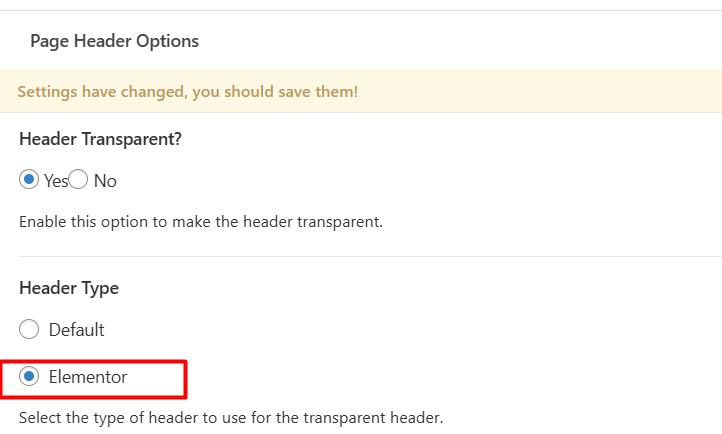
Digishift gives you the flexibility to choose from five unique Page Header styles, each designed to meet different needs. For instance, if you want a header that highlights navigation, you can select the Navigation Menu option.
In the following section, we’ll walk you through each header style, its features, and how it can be used.
To access the Page Header Options box, simply edit any page from the backend and look for the green box shown in the image below.
Digishift Slider Page Header #
To display Image Parallax on top of your page, locate the Page Header Options box and select Header Type: Digishift Slider as shown in the image below.
Locate the Digishift Slider dropdown menu and select the slider among the ones you have created in the Digishift Slider section of your admin panel.
Elementor Page Header #
If you are using the Elementor page builder, then you can add or create your own header with a background image, gradient, video, and slideshow. You can see an example of this header and background slider in the default demo, which was created using Elementor.