
A one-page site displays all of your content on a single scrolling page, with navigation links that scroll smoothly to different sections of the page. This style is great for landing pages, portfolios, and simple business sites.
Digishift is fully compatible with Elementor, making it easy to build a one-page layout without coding.
Create a New Page #
- Go to Pages → Add New.
- Enter a title for your page (e.g., “Home”).
- From the Template dropdown in the right-hand panel, select Elementor Full Width for more design flexibility.
- Click Publish.
Edit with Elementor #
- Click the Edit with Elementor button.
- Use Elementor’s drag-and-drop editor to add your content in sections (e.g., hero banner, about, services, contact).
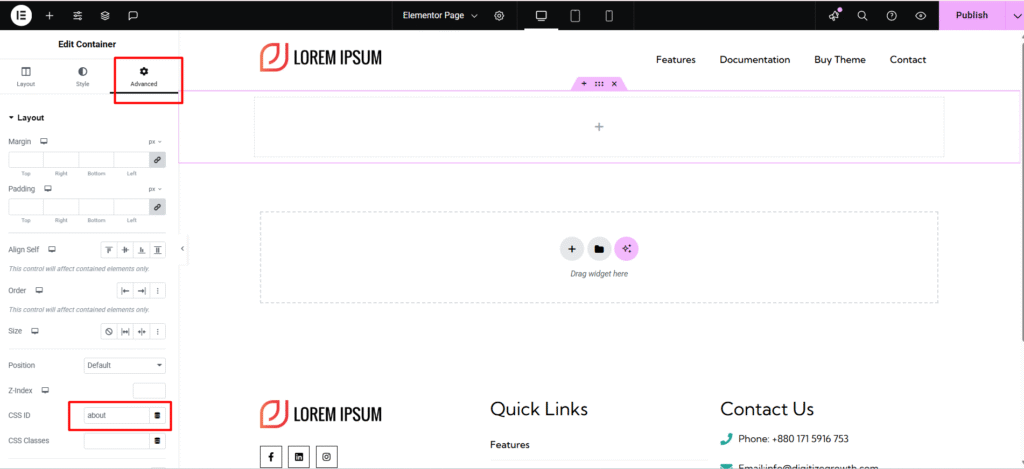
- Assign CSS IDs to each section for navigation purposes:
- Select the section → Go to the Advanced tab → CSS ID field → enter a unique ID (e.g., “about”, “services”).
Create the Navigation Menu #
- Go to Appearance → Menus.
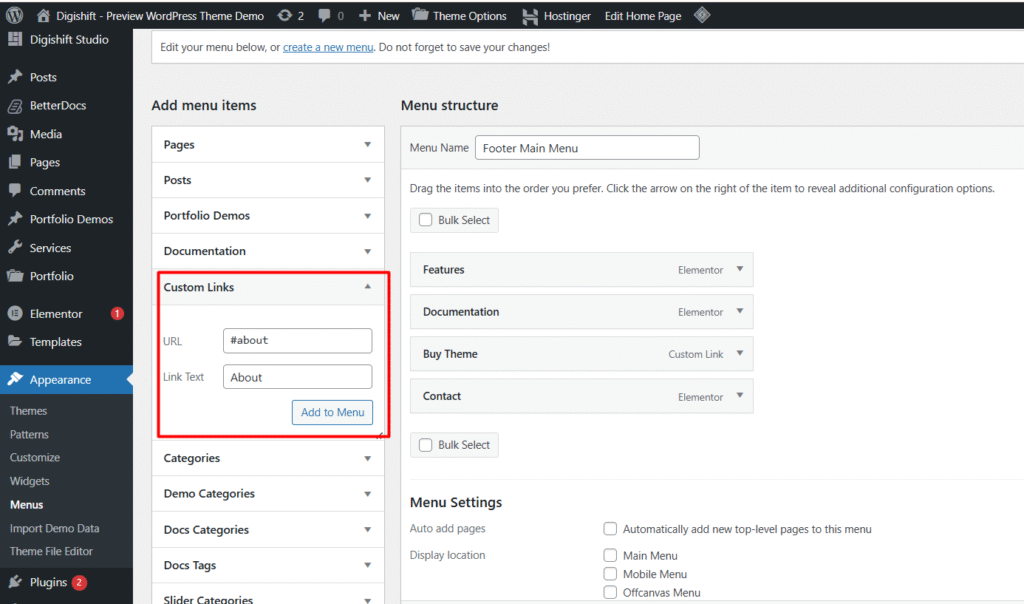
- Create a new menu and add Custom Links for each section:
- In the URL field, type # followed by the section’s CSS ID (e.g., #about).
- In the Link Text field, enter the section name (e.g., “About”).
- Assign the menu to the desired menu location (e.g., Main Menu) and save.
Set as Homepage #
- Go to Settings → Reading.
- Under Your homepage displays, select A static page.
- Choose your new One Page layout as the Homepage.
- Save changes.
Tips #
- Use Elementor’s Navigator to quickly move between sections during editing.
- For smooth scrolling, Digishift automatically handles anchor navigation when linking with #section-id.
- Keep sections visually distinct to help users navigate easily.


