
The home page is the most important part of your website. With the Digishift theme, you have full flexibility to create a professional landing page using Elementor or our built-in templates.
Design Your Homepage #
- Create a Page: First, create a new page by going to Pages > Add New. Or read more about creating a page to learn about the available custom options.
- Choose a Template: For a modern, edge-to-edge look, go to Template and select the Elementor Full Width template.
- Build with Elementor: Click Edit with Elementor to start adding sections like Sliders, Services, and Testimonials.
- Configure Layout: Scroll down to the Page Header Options to decide if you want a Transparent Header for your hero section.
Set Your Page as the Homepage #
Once your design is ready, you must tell WordPress to use this specific page as your site’s front door.
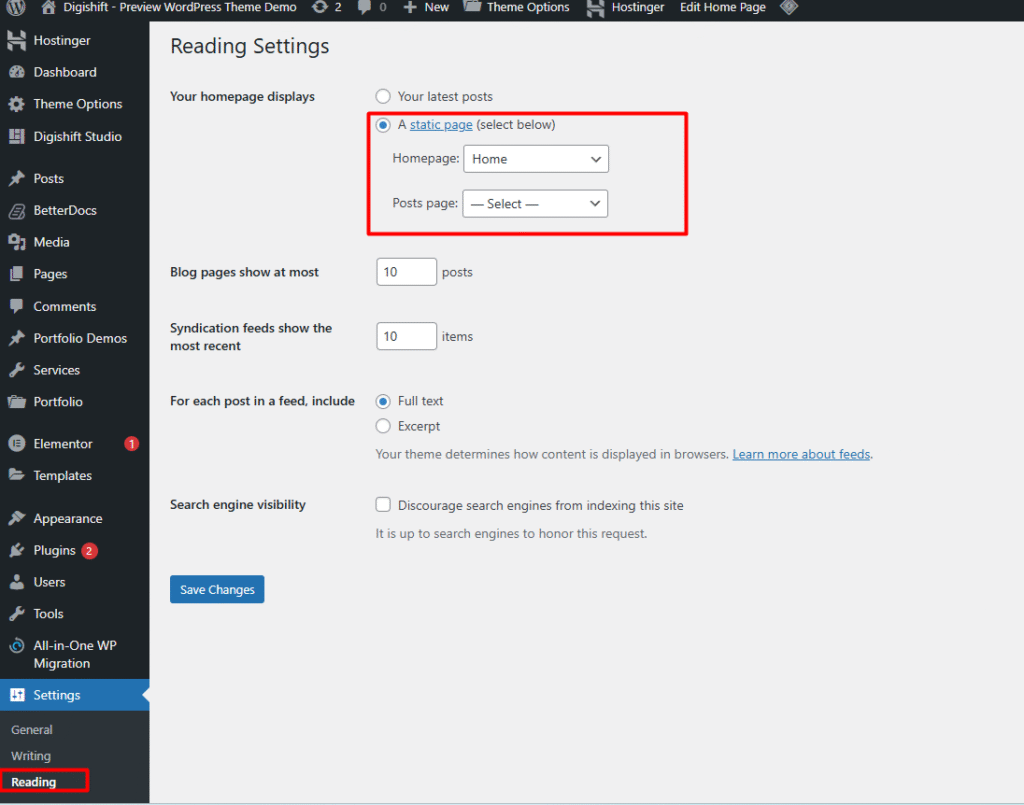
- Navigate to Settings > Reading in your WordPress Dashboard.
- Under Your homepage displays, select A static page.
- In the Homepage dropdown, select the page you just designed.
- (Optional) Select a different page in the Posts page dropdown if you want a dedicated Blog page.
- Click Save Changes.
Need more help? For a detailed breakdown of these WordPress settings, you can check the official guide on setting a front page


